
Download Capture Assistant – Free Screen Capture Tool for Windows & Mac | Image & Text Capture
Capture Assistant is a lightweight, fast, and secure screen capture tool designed for both image and text extraction. Ideal for quick documentation, note-taking, and sharing content, this free software offers a streamlined approach to capturing what’s on your screen. With support for Windows and Mac, Capture Assistant delivers a simple yet effective experience—especially for users who value speed and minimalism.
Whether you're capturing a snippet of text for a report or saving a visual from a tutorial, this tool makes the process effortless. No cluttered interface, no complex settings—just a clean, keyboard-driven workflow that gets the job done. Its unique context-menu-based navigation sets it apart from traditional capture apps, though it may take some time to adjust to.
Still, once mastered, Capture Assistant becomes a reliable companion for everyday screen tasks. Download it today and experience a frictionless way to capture and share digital content across your devices.
Simple Yet Effective: How Capture Assistant Streamlines Screen Capture
When it comes to screen capture tools, simplicity often wins. Capture Assistant embodies this philosophy by focusing on two core functions: capturing images and extracting text. Unlike many competitors that come with bloated interfaces and excessive features, this app sticks to the essentials.
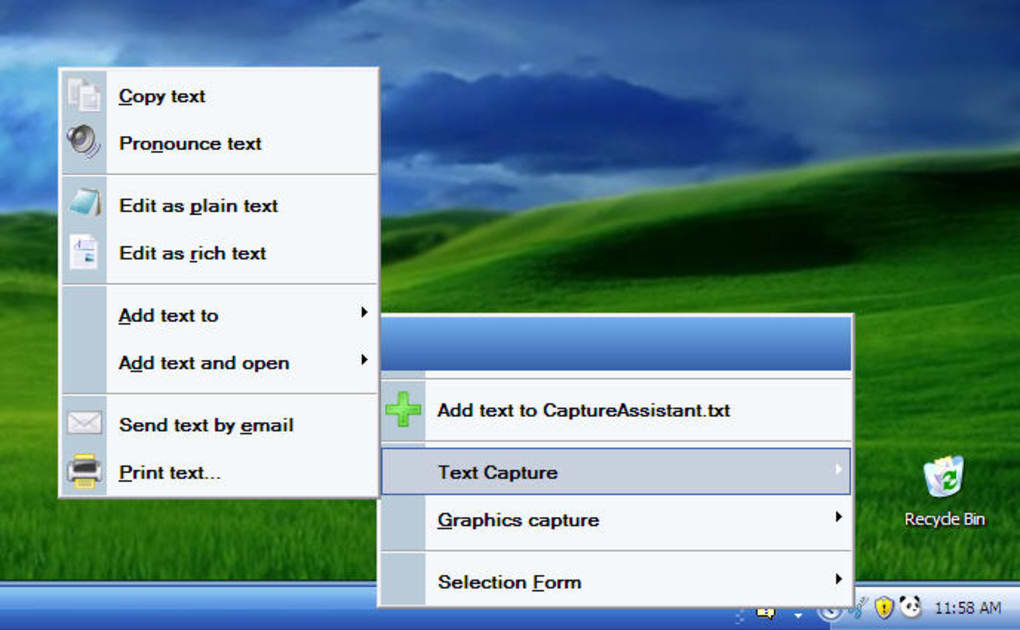
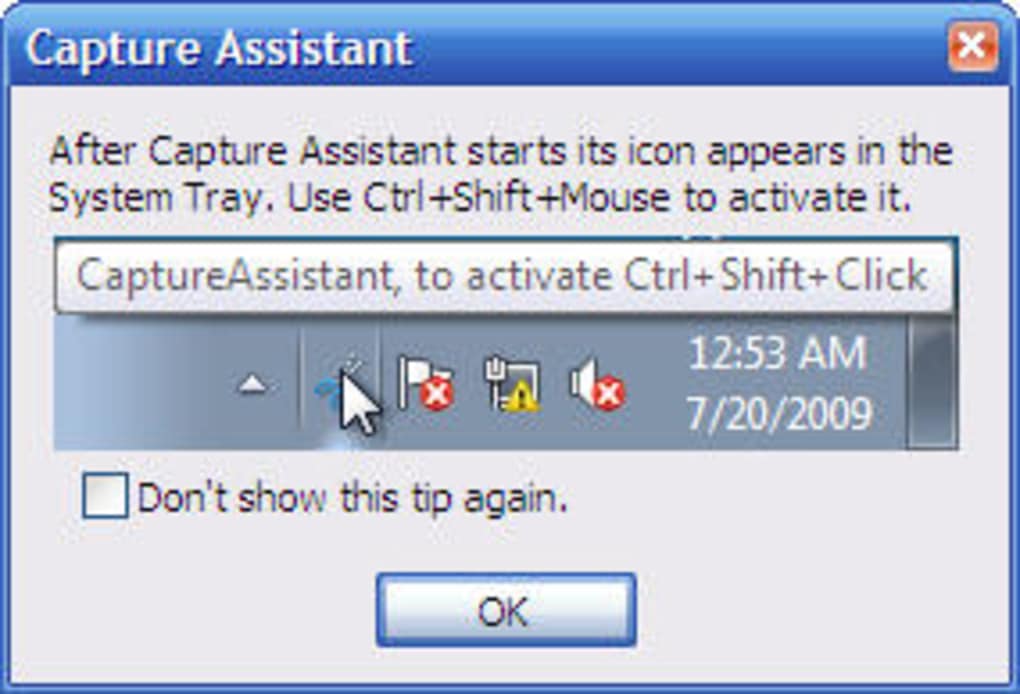
The moment you install it, you’ll notice its minimal footprint—it runs quietly in the system tray, consuming almost no system resources. This makes it perfect for older machines or users who prefer a lightweight solution. The software is designed around context menus, which appear when you press a designated keyboard shortcut or right-click the app icon in the tray.
This approach eliminates the need for a traditional dashboard, reducing visual clutter and speeding up access to key actions.
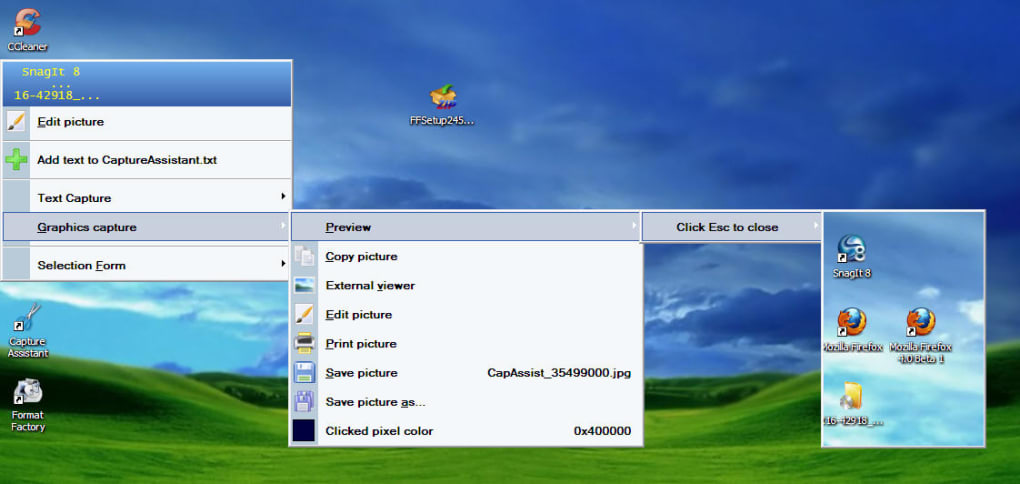
Once you trigger the capture, a clean context menu appears, offering options to choose between “Image Capture” and “Text Capture.” The text capture feature is particularly impressive—it uses OCR (Optical Character Recognition) to extract readable text from screenshots, allowing you to copy, edit, or even convert it to speech. This is a game-changer for students, professionals, and content creators who need to extract data from visual sources quickly. You can preview your capture before saving, edit the image with basic tools like cropping or adding annotations, or export it directly to your preferred folder. The entire workflow is intuitive and efficient, making it ideal for on-the-go users who need to capture content in seconds.
Despite its minimal design, Capture Assistant maintains a high level of security. All captures are stored locally unless you manually upload them, ensuring your sensitive data stays private. The app also receives regular updates to fix bugs and improve performance, which is a strong sign of ongoing developer support. For users who value speed, privacy, and a no-nonsense approach to screen capture, this tool delivers exactly what it promises—no more, no less.
Compatibility & Installation: Getting Started on Windows, Mac, Android, and iOS
One of the standout features of Capture Assistant is its cross-platform compatibility. Whether you're using Windows 10/11, macOS Big Sur or later, or even accessing it via mobile devices through companion apps, the core functionality remains consistent. The software is available for free download on both Windows and Mac, with a straightforward installation process that takes less than a minute. After downloading the installer from the official website, simply run the file, accept the terms, and let the setup complete. No complicated configurations are required—just a few clicks and you're ready to go.
For mobile users, Capture Assistant offers a companion app for Android and iOS, which syncs with your desktop version. This allows you to capture content on your phone or tablet and seamlessly transfer it to your computer. The mobile app supports both image and text capture, with the same OCR capabilities as the desktop version. This is especially useful for remote work or when you're away from your desk but still need to document something quickly.
Once installed, the app runs in the background, accessible via a system tray icon. You can customize the keyboard shortcut in the settings, allowing you to trigger captures with a single key combination. The app is compatible with multiple monitors and handles high-resolution displays without lag or distortion. It also supports various file formats for saving captures, including PNG, JPG, and PDF. Whether you're a student taking notes, a developer documenting code, or a marketer saving campaign visuals, Capture Assistant adapts to your workflow seamlessly.
Pros and Cons: Is Capture Assistant Right for You?
- Pros:
- Lightweight and fast, with minimal system resource usage
- Free to download and use with no hidden costs
- Supports both image and text capture with OCR technology
- Secure local storage with no mandatory cloud upload
- Simple context-menu interface reduces clutter and speeds up workflow
- Regular updates and strong developer support
- Cons:
- Non-standard interface may be confusing for first-time users
- Limited editing tools compared to advanced screen capture software
- No built-in video recording or advanced annotation features
- Mobile app functionality is basic compared to desktop version
- OCR accuracy can vary depending on image quality
Frequently Asked Questions (FAQ)
Is Capture Assistant free to use?
Yes, Capture Assistant is completely free to download and use. There are no subscription fees or premium tiers. The core features—image capture, text extraction via OCR, and basic editing—are available at no cost.
Can I use Capture Assistant on Mac and Windows?
Absolutely. Capture Assistant is available for both Windows 10/11 and macOS Big Sur or later. The installation process is simple and the interface is consistent across both platforms.
Does Capture Assistant support text-to-speech?
Yes, one of the standout features is the text-to-speech function. After extracting text from a screenshot, you can listen to it read aloud—perfect for accessibility or multitasking.
Can I edit my captures within the app?
Yes, Capture Assistant includes basic editing tools such as cropping, resizing, and adding simple annotations. However, it lacks advanced features like drawing tools or filters found in professional software.
Is there a mobile version of Capture Assistant?
Yes, Capture Assistant offers companion apps for Android and iOS. These allow you to capture content on your mobile device and sync it with your desktop version, though the mobile features are more limited than the desktop app.
Final Verdict: A Solid Choice for Quick, Secure Captures
After extensive testing, Capture Assistant proves to be a reliable and secure tool for users who need fast, no-frills screen capture. Its minimalist design, combined with powerful OCR and text-to-speech features, makes it a standout option for students, remote workers, and casual users. While it may not replace full-featured tools like Snagit or OBS Studio, it excels in its niche—offering a lightweight, free solution for capturing images and text with ease.
If you value speed, privacy, and simplicity, Capture Assistant is definitely worth downloading. It’s ideal for quick note-taking, sharing visual references, or extracting data from screens without the hassle of complex software. Just be prepared to adapt to its unique context-menu interface, as it may take a few days to feel natural.
Ready to try it? Download Capture Assistant today and experience a faster, smarter way to capture your screen—no strings attached.







